FastMCP: how I'd build my first MCP server in Python
By Shah Rukh, software developer · · 8 min read
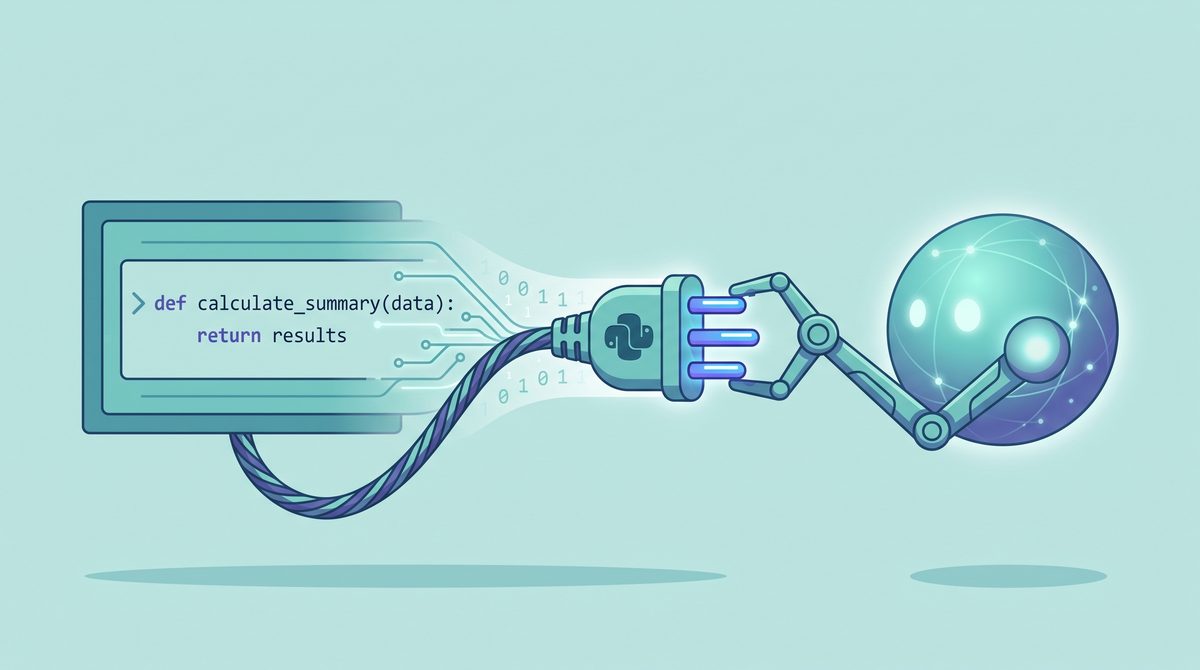
FastMCP is a Python framework for building MCP servers, the small programs that hand an AI assistant a set of tools it can actually run. If you can write a Python function, you can write one of these. There’s surprisingly little ceremony: you decorate a function, run the file, and the assistant can call it. This is a walkthrough for your first one, on Windows and Mac.
Quick background so the rest makes sense. MCP stands for Model Context Protocol, a shared standard for connecting a language model to outside tools and data, so it can read a file, hit an API or query a database instead of just talking. FastMCP is the Pythonic way to build the server side of that, and it does clients and interactive apps too. There’s an official TypeScript version (@prefecthq/fastmcp-ts), but this post is all Python.
Read this before you start. FastMCP is not an AI model and it is not a chatbot. It is the framework you use to build a server. You still need a separate MCP client to talk to it, like Claude Desktop, Claude Code or Cursor, and those have their own plans and costs that this project doesn’t control. Two more things to sit with: the tools you write run your own Python code on your machine, and whatever your tools return gets passed to whatever AI provider your client uses. So treat a tool like code you’re shipping, not a toy.
Who this is really for
If you’ve got an API, a script, or data you keep copy-pasting into a chat window, this is what lets the assistant reach it directly. You write the logic; FastMCP generates the tool schema, validates inputs and handles the protocol so you don’t have to read the MCP spec. The README claims some version of FastMCP powers around 70% of MCP servers across all languages, their number, not mine, but the point stands: this is the common path.
It’s an open-source project from the team at Prefect, released under the Apache 2.0 licence. It’s free. It is not affiliated with any AI company, and neither am I, or ToolsCloset.
What you need first
- Python 3.10 or newer. The package requires at least 3.10.
- A terminal. PowerShell on Windows, Terminal on Mac. The commands below are the same on both.
- uv (recommended) or pip. The docs lean on uv to install and run things. Pip works fine too.
- An MCP client to actually use the server. I’ll use Claude Desktop as the example because the project documents it well.
No API keys are needed for FastMCP itself. If a tool you write calls some paid API, that key is on you, and I’ll get to where it should live.
Install it and check it worked
With uv, inside your project folder:
uv add fastmcp
Or with pip:
pip install fastmcp
Then confirm it’s really there:
fastmcp version
You should see a few lines printed: the FastMCP version (the docs show 4.0.0), the MCP version, your Python version and platform. If that prints, you’re set. If you installed with pip and import fastmcp suddenly breaks right after an upgrade, skip to the troubleshooting bit, that one has a known fix.
Write the server
This is the whole thing. Make a file called my_server.py:
from fastmcp import FastMCP

mcp = FastMCP("My MCP Server")

@mcp.tool
def greet(name: str) -> str:
    return f"Hello, {name}!"

if __name__ == "__main__":
    mcp.run()
That’s a real, working server with one tool. The @mcp.tool line does the heavy lifting: FastMCP reads your function’s name, its type hints (name: str) and its docstring, and builds the tool schema from that. So write honest type hints and a plain docstring, the model leans on both.
The if __name__ == "__main__": block is worth keeping. The docs say it keeps your server working with any client that runs the file as a script. You only strictly need it if you run the file yourself.
Run it
The simplest way:
python my_server.py
By default that runs over stdio, the transport local clients like Claude Desktop expect. It’ll look like nothing happened, no web page, no output, because it’s waiting to talk to a client over standard input and output, not to you. That’s normal. Press Ctrl+C to stop it.
To make it reachable over the network, change the run line to mcp.run(transport="http", port=8000). Or skip editing the file and use the CLI, which ignores the __main__ block and imports your server object directly:
fastmcp run my_server.py:mcp
fastmcp run my_server.py:mcp --transport http --port 8000
The my_server.py:mcp part points at the variable named mcp. If you don’t name one, FastMCP looks for mcp, server or app.
Connect it to Claude Desktop
Here’s where it gets satisfying. FastMCP can wire the server into your client for you:
fastmcp install claude-desktop my_server.py
Then fully quit and reopen Claude Desktop. The docs say to look for a small hammer icon near the message box, that means your tools are loaded. The same install command works for claude-code, cursor, gemini-cli and goose in place of claude-desktop.
The gotcha that got documented. Claude Desktop runs your server in an isolated environment. It can’t see your shell, and it needs uv on your system PATH. On Mac the docs specifically recommend installing uv with Homebrew (brew install uv) so Claude Desktop can find it; other install methods may not be visible to it. On Windows, make sure uv is on PATH the same way.
If you’d rather do it by hand, Claude Desktop reads a JSON config file. The locations the docs give:
| System | Config file |
|---|---|
| Mac | ~/Library/Application Support/Claude/claude_desktop_config.json |
| Windows | %APPDATA%\Claude\claude_desktop_config.json |
Inside it, add your server under mcpServers:
{
  "mcpServers": {
    "my-server": {
      "command": "python",
      "args": ["path/to/your/my_server.py"]
    }
  }
}
Restart the app after editing. Once it’s connected, just ask the assistant to greet someone and watch it call your tool.
Testing without a chat client
You don’t have to open a client every time you tweak something. fastmcp inspect my_server.py prints what the server contains. fastmcp list and fastmcp call let you see the tools and run one from the terminal. And fastmcp dev inspector my_server.py launches your server inside the browser-based MCP Inspector with auto-reload. One wrinkle the docs flag: the Inspector imports your file without running the __main__ block, so anything set up in there won’t show up. Register your tools at the top level, like the example does.
You can also call a server from Python with the client, handy for your own tests:
import asyncio
from fastmcp import Client

client = Client("http://localhost:8000/mcp")

async def main():
    async with client:
        result = await client.call_tool("greet", {"name": "Ford"})
        print(result)

asyncio.run(main())
Precautions that actually matter here
- Your tools are code with a trigger attached. Anything a tool can do, the assistant can ask it to do. Don’t wire a “delete” or “run shell command” tool and then wave approvals through without reading them.
- Keep secrets out of the file. If a tool needs an API key, don’t hard-code it. Pass it in. With the install command you can add
--env API_KEY=...or point at a file with--env-file .env. Never commit that.env. - HTTP means an open door. The moment you serve over HTTP, that port can be reached. FastMCP’s own security notes are blunt: an HTTP server with authentication set to none does not require any token. Keep local-only servers on stdio, and don’t bind an unauthenticated server to a public address.
- Your data leaves with the model. Whatever a tool returns flows to the AI provider behind your client. Don’t expose client or company data without permission.
- Pin the version for anything real. The docs recommend an exact pin like
fastmcp==4.0.5rather than>=4.0.0, because this ecosystem moves fast and minor versions can break things. - Use the real project. Source: github.com/PrefectHQ/fastmcp; docs: gofastmcp.com.
Things that went sideways (and the fix)
| Symptom | What to do |
|---|---|
import fastmcp fails right after a pip upgrade | This hits one case: upgrading to 3.3+ from 3.2 or earlier with pip. Run pip install --force-reinstall fastmcp, or pip uninstall -y fastmcp fastmcp-slim then reinstall. uv upgrades aren’t affected. |
| Claude Desktop shows no hammer / tools don’t appear | Fully quit and reopen it. Confirm uv is on PATH (on Mac, brew install uv). |
| Your tool can’t read an env var | Claude Desktop runs in an isolated environment. Pass variables explicitly with --env or --env-file. |
Tools set up in __main__ are missing in the Inspector or CLI | The CLI imports your file and skips the __main__ block. Register tools at the top level instead. |
| Running the file “does nothing” | A stdio server is meant to look idle, it’s waiting for a client. That’s expected. |
Updating and removing it
To update, reinstall the latest with your package manager (uv add fastmcp again, or pip install --upgrade fastmcp). To remove it cleanly, the docs mention that FastMCP splits across two distributions, so uninstall both:
pip uninstall -y fastmcp fastmcp-slim
If you installed the server into Claude Desktop by editing the JSON by hand, delete your entry from mcpServers and restart the app.
Once the first tool clicks, the pattern repeats. A tool that turns a spreadsheet into structured data for the model is the same shape of function, and you can prototype the conversion with a CSV to JSON converter first. Returning formatted text? Markdown to HTML helps. And when you need a token for an authenticated server, a password generator beats typing one by hand. Start with the boring greet tool, get it showing up in your client, then swap in something you actually use.
I wrote this from the project’s repository as it was on October 5, 2026 (latest commit October 4), so if a command or version looks different when you read it, trust the README and the docs at gofastmcp.com over me. The repo doesn’t give Windows-specific caveats beyond the config path, so where I couldn’t verify a detail I’ve said so. ToolsCloset isn’t connected to FastMCP, to Prefect, or to any AI provider.
Frequently asked questions
Is FastMCP free?
Yes. It’s open source under the Apache 2.0 licence and free to install and use. You still need an MCP client to talk to your server, such as Claude Desktop or Cursor, and that client may have its own plan or costs. FastMCP doesn’t control those.
Do I need to know a lot of Python?
Not really. If you can write a function with type hints and a docstring, you can write a tool. FastMCP turns that function into an MCP tool automatically. You’ll want Python 3.10 or newer.
Does FastMCP include an AI model?
No. It’s the framework for building the server side, the tools an assistant can call. The actual intelligence comes from whatever MCP client and model you connect to it, like Claude Desktop.
Does it work on Windows and Mac?
Yes, it’s a Python package, so the install and run commands are the same on both. The main differences are the Claude Desktop config file path and, on Mac, installing uv with Homebrew so Claude Desktop can find it.
Why does my server look like it’s doing nothing when I run it?
A stdio server is supposed to sit quietly and wait for a client to connect over standard input and output. There’s no web page or output to see. Connect a client, or test it with the FastMCP CLI or the Inspector.
How do I give my server to Claude Desktop?
Run fastmcp install claude-desktop my_server.py, then fully quit and reopen Claude Desktop and look for the hammer icon. uv needs to be on your PATH for this to work. You can also add the server by hand in Claude Desktop’s JSON config file.
Is it safe to expose a tool to an AI assistant?
Treat it like shipping code. Your tools run real Python, and whatever they return is sent to your client’s AI provider. Keep secrets in environment variables rather than in the file, don’t leave an HTTP server unauthenticated on a public address, and read the approval prompts in your client.
More AI tips

Free Claude Code Setup Guide
Run the Claude Code app with free AI models on Windows or Mac. Full steps, plus the precautions most guides skip.

EmailOSINT Review and Guide
See which accounts, data breaches and stolen-password logs are tied to your email, and what to do about each result.

Set up Context Mode the easy way
Context Mode is an MCP plugin that stops your coding agent's context window from filling up with raw tool output.

TradingView MCP Guide
Self-host the free TradingView MCP server on Windows or Mac, or pay for hosting — and mind the data-not-advice caveat.

AWS MCP servers, explained
AWS publishes a big set of open-source MCP servers. Here's what they do and how to wire one into your AI coding assistant.

MCP servers in TypeScript
A beginner-friendly look at mcp-use for building and connecting MCP servers, clients and agents in TypeScript.

OpenHands Agent Canvas Guide
Set up the OpenHands control centre for AI coding agents on Windows or Mac, with the safety steps to take first.
Dify Self-Hosting Guide
Run the Dify AI app builder on your own computer with Docker Compose, and know the costs and licence limits first.

LibreChat Docker Setup Guide
Run your own ChatGPT-style chat app on your computer with Docker. Full steps, real costs and safety checks.
Unity MCP Setup Guide
Let Claude Code, Cursor or Copilot work inside the Unity Editor. Full install steps, plus the precautions to take first.

sprite-gen Setup Guide
Turn one character drawing into a transparent game sprite sheet. Setup steps, real costs and precautions.

Logo Design Skill Setup Guide
Add a free logo-design skill to Claude or another AI agent on Windows or Mac, with the precautions to take first.
Openvid Screen Demo Guide
Record your screen and turn it into a polished demo in the browser, or run Openvid yourself on Windows or Mac.

ReelMimic Setup Guide
Set up ReelMimic to make an original 2D animation in the style of a reference video, with the copyright checks to do first.