AWS's official MCP servers: what they are and how to connect one
By Shah Rukh, software developer · · 8 min read
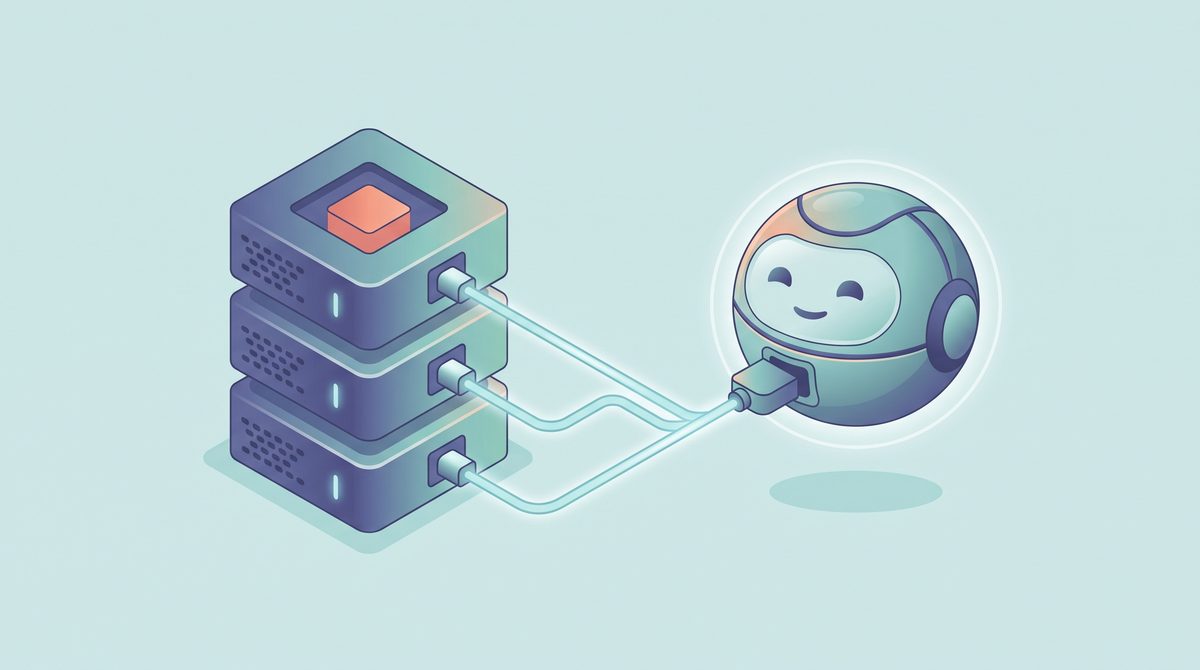
If your AI coding assistant keeps giving you slightly-wrong AWS advice, this is one fix worth knowing about. AWS runs an open-source project called awslabs/mcp — a collection of MCP servers that plug AWS knowledge and AWS actions straight into tools like Cursor, Claude Code, Kiro, Windsurf and VS Code. I read through the repo to explain, without the jargon, what these things are and how to connect one.
Quick definition first. MCP stands for Model Context Protocol — an open standard (the repo notes it’s run by Anthropic) for letting an AI assistant talk to outside tools. An MCP server is just a small program that exposes some capability — read AWS docs, look up pricing, deploy a stack — in a way your assistant can call. Your editor is the “client”, the little program is the “server”. That’s the whole idea.
So awslabs/mcp isn’t one tool. It’s a monorepo of many servers, each focused on one slice of AWS — documentation, pricing, CloudFormation and CDK, EKS and ECS, Lambda, databases, and plenty more. You don’t install all of them. You pick the one or two that match what you’re doing.
Before you get excited, read this. The servers split into two very different groups. Some only read public information (AWS docs, for example) and need nothing from you but an internet connection. Others call real AWS APIs against your own account — and a few of those can create or change resources, which means they can cost you money and need AWS credentials set up. I’ll be clear below about which is which, but the short version: start with a read-only one, and don’t point a write-capable server at a production account while you’re still learning.
One thing to know up front: the Agent Toolkit
Right at the top of the repo there’s a notice I don’t want to bury. AWS now has something called the Agent Toolkit for AWS, and the README calls it “the successor to the MCP servers, plugins, and skills available on AWS Labs.” AWS says if you’re building production software with coding agents, that’s what they recommend — it adds things like IAM condition keys to tell agent actions apart from human ones, plus CloudTrail and CloudWatch visibility.
The README also says this repo “continues to work and accept contributions”, and that over time the most useful projects will move into the Agent Toolkit. For learning and personal projects, the open-source servers are still fine — just know the official direction of travel.
Which servers are beginner-friendly
I’d start with the ones that can’t touch your account. Here are the three I’d point a beginner at, with the honest trade-offs.
AWS Documentation MCP Server
This is the gentlest place to start. It fetches AWS documentation pages, searches the docs, and pulls out specific sections or table rows, then hands them to your assistant as clean markdown. The repo’s own example prompt is simple: “look up documentation on S3 bucket naming rule. cite your sources.” It runs locally over stdio, it needs Python and a tool called uv, and — the part I like — it does not need an AWS account or credentials. It’s just reading public docs on your behalf.
AWS Knowledge MCP Server
Same spirit, different shape. This one is a remote, fully-managed server that AWS hosts for you at https://knowledge-mcp.global.api.aws. There’s nothing to install — you just point your client at that URL. It covers more than the docs server: the README lists What’s New posts, blog posts, Well-Architected guidance, CDK and CloudFormation examples, and more. The FAQ says plainly: “No. You can get started with the Knowledge MCP server without an AWS account”, though it is subject to rate limits. The one catch is that your editor has to support remote (HTTP) MCP servers; not every client does yet, and the README mentions a proxy workaround for the ones that don’t.
AWS Pricing MCP Server
This is a good “next step” once you’re comfortable, and it’s a useful example of the credentials question. It answers cost questions in plain English using the AWS Pricing API, and the README says clearly that “All calls are free of charge.” But — and this is the honest bit — it still needs AWS credentials. The prerequisites say you need an AWS account, credentials configured with aws configure or environment variables, and an IAM user or role with pricing:* permissions. So the pricing data is free, but you can’t use this one anonymously like the two above.
Beyond these three, the repo has servers for infrastructure-as-code, containers, serverless and databases — the ones that can genuinely provision or change resources in your account. Their configs in the README include an AWS_PROFILE, and some use flags like --allow-write. Great tools, but not where I’d start.
What you need
- An AI coding assistant that supports MCP. The repo names Kiro, Cline, Cursor, Windsurf, VS Code, Claude Code and others.
uvand Python, for the local servers. The install steps are: installuvfrom Astral, then runuv python install 3.10. The remote Knowledge server skips this entirely.- AWS credentials, only for the servers that call your account (pricing, IaC, containers, and so on). The read-only docs and Knowledge servers don’t need them.
Setup, step by step
I’ll use the AWS Documentation server as the example since it’s the safest. Every MCP client reads a small JSON config; the shape is almost identical everywhere, the file location is what changes. The configs are JSON, so if you ever need to tidy one up, a quick pass through a formatter-style tool or careful copy-paste helps — one stray comma breaks the whole file.
On Mac (and Linux)
- Install
uv, then install Python:uv python install 3.10
- Add the server block to your client’s MCP config. For example, Cursor uses
.cursor/mcp.json:{ "mcpServers": { "awslabs.aws-documentation-mcp-server": { "command": "uvx", "args": ["awslabs.aws-documentation-mcp-server@latest"], "env": { "FASTMCP_LOG_LEVEL": "ERROR", "AWS_DOCUMENTATION_PARTITION": "aws" } } } } - Save, then restart or reload your client so it picks up the new server.
On Windows
Windows needs a slightly different format — you don’t call uvx directly, you go through uv tool run. This is straight from the repo:
{
  "mcpServers": {
    "awslabs.aws-documentation-mcp-server": {
      "disabled": false,
      "timeout": 60,
      "type": "stdio",
      "command": "uv",
      "args": [
        "tool",
        "run",
        "--from",
        "awslabs.aws-documentation-mcp-server@latest",
        "awslabs.aws-documentation-mcp-server.exe"
      ],
      "env": {
        "FASTMCP_LOG_LEVEL": "ERROR",
        "AWS_DOCUMENTATION_PARTITION": "aws"
      }
    }
  }
}
If you use Claude Code
There’s a CLI shortcut that writes the config for you. From the repo:
claude mcp add aws-docs uvx awslabs.aws-documentation-mcp-server@latest
claude mcp list
Or skip install with the remote Knowledge server
No uv, no Python — just a URL. The format varies by client, but it’s as small as this:
{
  "mcpServers": {
    "aws-knowledge-mcp-server": {
      "url": "https://knowledge-mcp.global.api.aws",
      "type": "http",
      "disabled": false
    }
  }
}
First real use
Once it’s connected, you don’t “run” anything. You just ask your assistant a question and it decides to use the tool. Try the repo’s own example — “look up documentation on S3 bucket naming rules, and cite your sources.” One heads-up: because the config uses @latest, the first launch downloads the package from PyPI, so give that initial start a moment. The README mentions dropping @latest later for faster startup if you’d rather manage updates yourself.
Most clients ask you to approve each tool call the first time. Read those prompts — that’s your safety net, especially on any server that can act on your account.
Real precautions
- Know what the server can do before you connect it. Read-only (docs, Knowledge) is low stakes. Anything with
AWS_PROFILEor--allow-writein its config can touch your real account. Treat those with respect. - Mind where credentials live. Don’t paste long-lived access keys into a file you might commit to Git. The repo’s own Docker example keeps secrets in a separate
.envfile for exactly this reason. If you ever need to hand-encode a value for an environment variable, a Base64 encoder/decoder is handy for checking what a tool expects. - Your data goes to a third party. With the remote Knowledge server, your queries travel to AWS. The README says telemetry from it isn’t used to train models, but you’re still sending text to a hosted service — fine for docs questions, worth a thought for anything sensitive.
- Use a scratch account for the write-capable servers. If you’re exporting resource lists or cost data to review, pull it into something plain like CSV and convert with a CSV to JSON tool rather than letting an agent loose on production.
Things that can go sideways
A couple of snags I’d expect based on the repo. If a server won’t start, it’s usually the config: the README gives a timeout 15s uv tool run … trick to run a server by hand and see the real error. On Windows, using the Mac-style uvx block is a classic cause of “it just won’t connect” — use the uv tool run version shown above. For the remote Knowledge server, the usual blocker is that your client doesn’t support HTTP MCP servers yet; the README points to a proxy for that case. One more thing: SSE transport was removed back in May 2025, so an old tutorial telling you to use SSE will lead you astray.
Updating is just the @latest tag doing its job each launch; to uninstall, you remove the server’s block from the JSON config. The repo doesn’t spell out a formal uninstaller beyond that, so I won’t pretend there is one.
The whole project is open source under the Apache-2.0 licence — permissive, which is part of why I’m comfortable telling people to poke around in it.
I wrote this from the project’s repo as it was on October 5, 2026, and things in a fast-moving AWS project can change — check the README and each server’s own README for the current commands, prerequisites and flags before you rely on them. ToolsCloset / ToolsCloset isn’t connected to AWS or the awslabs/mcp project; this is just an independent walkthrough.
Frequently asked questions
Do I need an AWS account to try these?
Not for all of them. The AWS Documentation server reads public docs and needs no account, and the remote AWS Knowledge server says plainly you can get started without an AWS account. You only need credentials for servers that call your own account, like the Pricing, infrastructure, container and database ones.
Will using them cost me money?
The servers themselves are free and open source. Read-only ones cost nothing. The Pricing server's API calls are free too, per its README. The real cost risk is with servers that can create or change AWS resources in your account — those bill like any normal AWS usage, so be careful which account you point them at.
What's the Agent Toolkit for AWS the README keeps mentioning?
It's what AWS calls the successor to these MCP servers. AWS recommends it for production software built with coding agents because it adds things like IAM condition keys, plus CloudTrail and CloudWatch visibility. The open-source repo still works and accepts contributions, but over time the most useful projects are expected to move into the Agent Toolkit.
Which one should a complete beginner start with?
The AWS Documentation server or the remote AWS Knowledge server. Both are read-only, so there's no risk of touching your account, and the Knowledge server needs no install at all — just a URL in your client's config.
Why are the Windows and Mac configs different?
On Mac and Linux the config calls uvx directly. On Windows you go through uv with the tool run arguments and the .exe name, as shown in the repo. Using the Mac-style block on Windows is a common reason a server won't connect.
Does it work with my editor?
It works with any assistant that supports MCP. The repo names Kiro, Cline, Cursor, Windsurf, VS Code and Claude Code, among others. For the remote Knowledge server your client specifically needs to support HTTP MCP servers; if it doesn't, the README describes a proxy workaround.
Is my data kept private?
Local read-only servers run on your machine. When you use the hosted Knowledge server your queries go to AWS; its README says that telemetry isn't used to train models, but you're still sending text to a third-party service, so use judgement with anything sensitive.
More AI tips
Free Claude Code Setup Guide
Run the Claude Code app with free AI models on Windows or Mac. Full steps, plus the precautions most guides skip.

EmailOSINT Review and Guide
See which accounts, data breaches and stolen-password logs are tied to your email, and what to do about each result.
FastMCP for beginners
Turn a plain Python function into a tool an AI assistant can call. Setup on Windows and Mac, step by step.

Set up Context Mode the easy way
Context Mode is an MCP plugin that stops your coding agent's context window from filling up with raw tool output.

TradingView MCP Guide
Self-host the free TradingView MCP server on Windows or Mac, or pay for hosting — and mind the data-not-advice caveat.
MCP servers in TypeScript
A beginner-friendly look at mcp-use for building and connecting MCP servers, clients and agents in TypeScript.
OpenHands Agent Canvas Guide
Set up the OpenHands control centre for AI coding agents on Windows or Mac, with the safety steps to take first.
Dify Self-Hosting Guide
Run the Dify AI app builder on your own computer with Docker Compose, and know the costs and licence limits first.
LibreChat Docker Setup Guide
Run your own ChatGPT-style chat app on your computer with Docker. Full steps, real costs and safety checks.
Unity MCP Setup Guide
Let Claude Code, Cursor or Copilot work inside the Unity Editor. Full install steps, plus the precautions to take first.

sprite-gen Setup Guide
Turn one character drawing into a transparent game sprite sheet. Setup steps, real costs and precautions.

Logo Design Skill Setup Guide
Add a free logo-design skill to Claude or another AI agent on Windows or Mac, with the precautions to take first.
Openvid Screen Demo Guide
Record your screen and turn it into a polished demo in the browser, or run Openvid yourself on Windows or Mac.

ReelMimic Setup Guide
Set up ReelMimic to make an original 2D animation in the style of a reference video, with the copyright checks to do first.